

What your customers see, and when.
Hoptide gives every customer a private web page for their service. The page and its emails change as your crew works through the day. This is each change, in the order it happens, with the exact email that goes out.
1. Day one
Each customer gets a private link.
You add a customer, or paste your list, and Hoptide emails each one a link to their own page. The link is theirs alone: no account, no password, nothing to install. It works on any phone.
- Email subject
- Your updates from Mike's Snow Removal
- On their page
- Your next service, your address, and who to contact.
2. The crew starts
They see where they are in the route.
When the crew taps Start route, every page on it updates with the stop count. Customers see how many stops are ahead of them instead of a minute estimate that can't be kept.
- Email subject
- We're out today, and you're stop 7 of 20
- On their page
- 4 stops away. We started at 6:02 AM and we're working our way to you.
9:41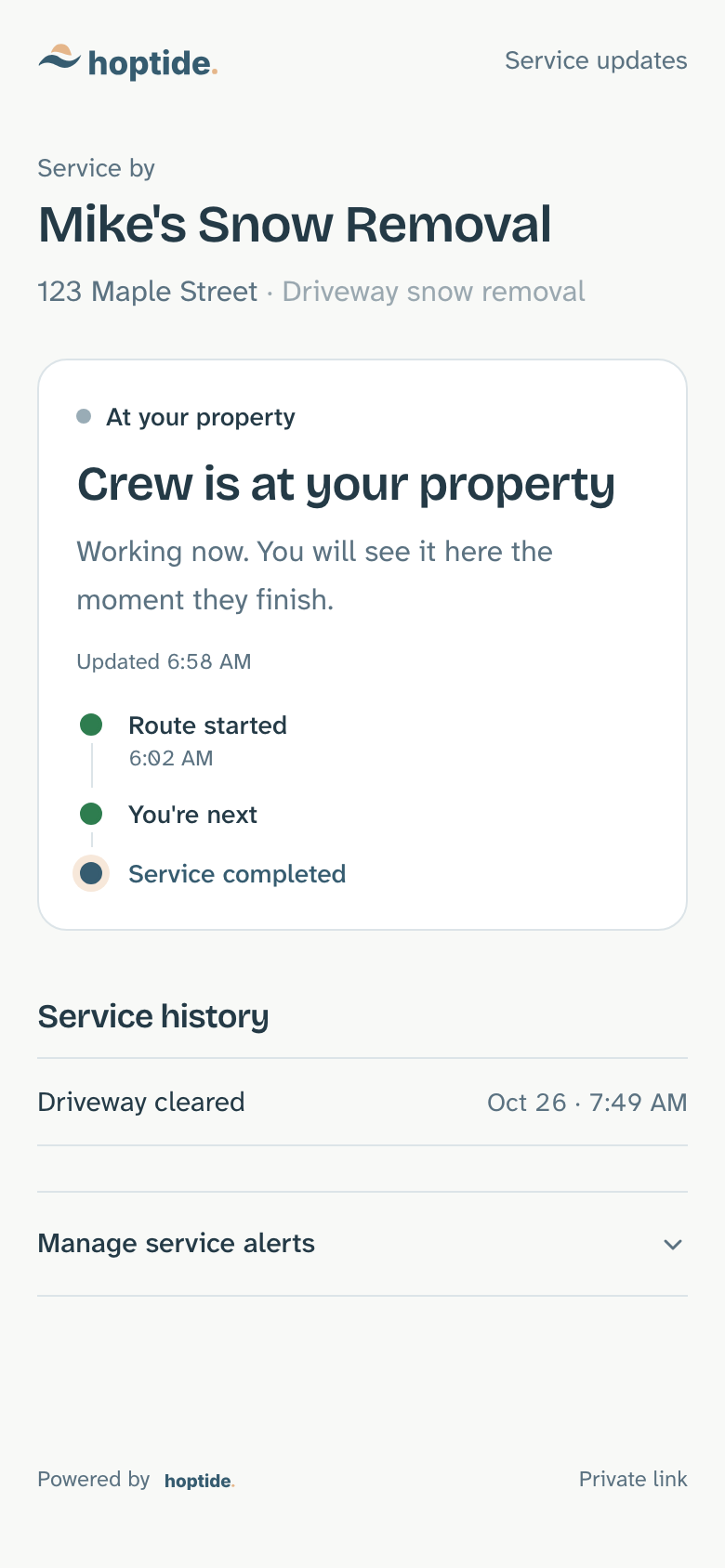
3. One stop before theirs
They hear they are next.
When the stop before theirs is marked done, their page changes. Where each stop takes a while, they can get a You're next text or email too. Appointment businesses get the same moment as an on-the-way notice when the crew taps On my way.
- Email subject
- You're next
- On their page
- You're next. We're finishing the stop before yours.
9:41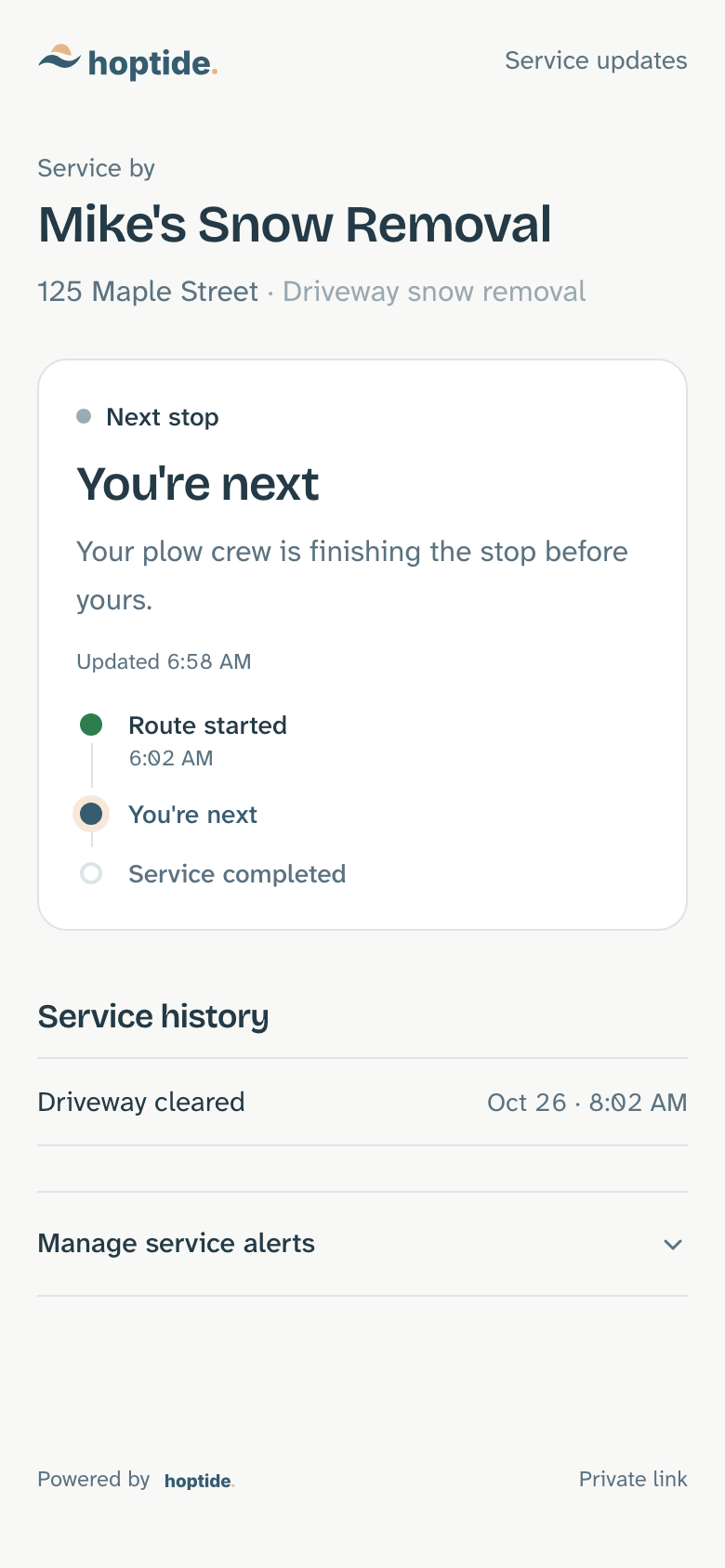
4. When plans change
They know you are running late.
One tap on Report delay from the truck updates every page that is still waiting and emails the customers who asked to hear about changes. Nobody has to call to find out.
- Email subject
- We're running behind today
- On their page
- We're running behind, but you're still on our list for today.
9:41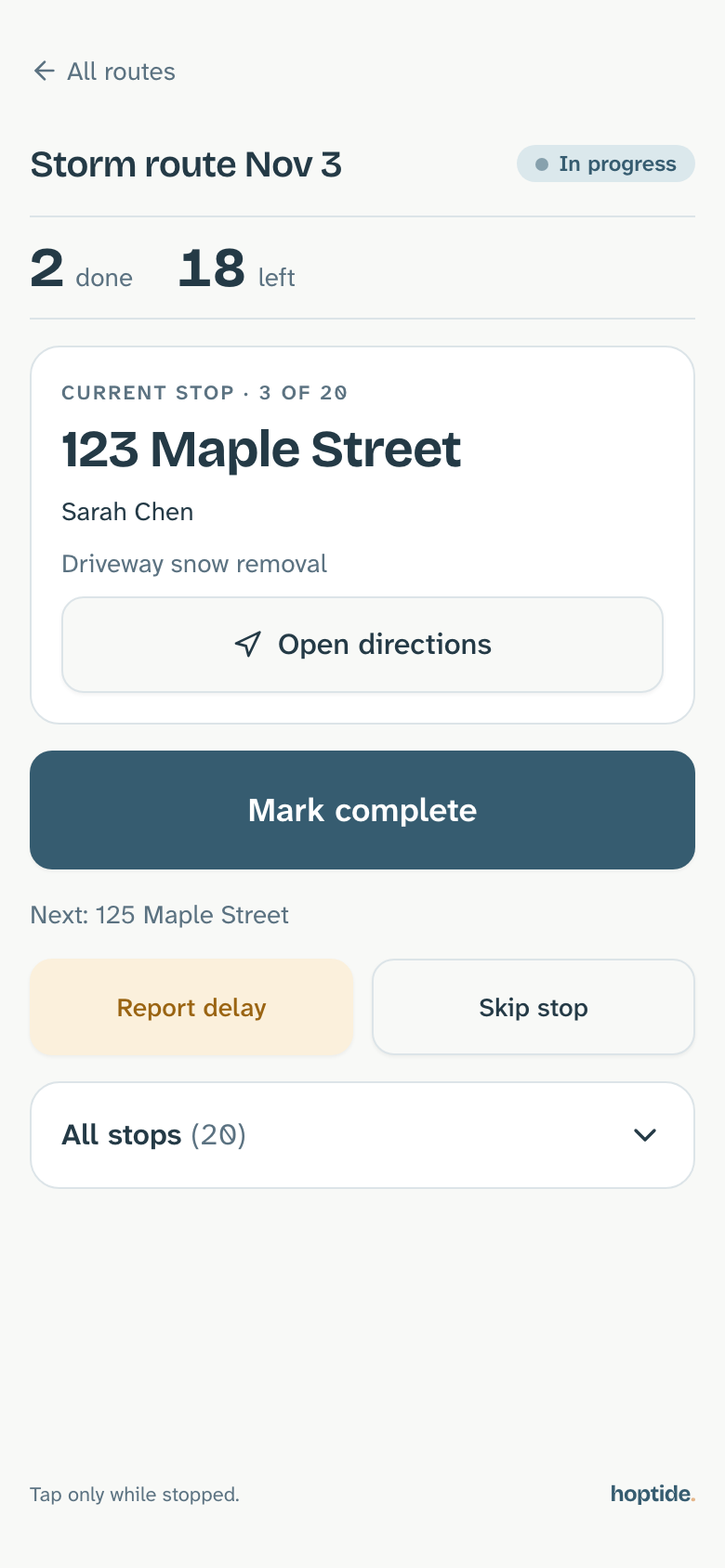
5. When the job is done
They get the time it was finished.
Mark complete sends one email with the time and moves their page to done. If a stop has to be skipped, the page says so and why, so the question never reaches your phone.
- Email subject
- Your driveway has been cleared
- On their page
- Your driveway has been cleared. We finished at 6:58 AM.
9:41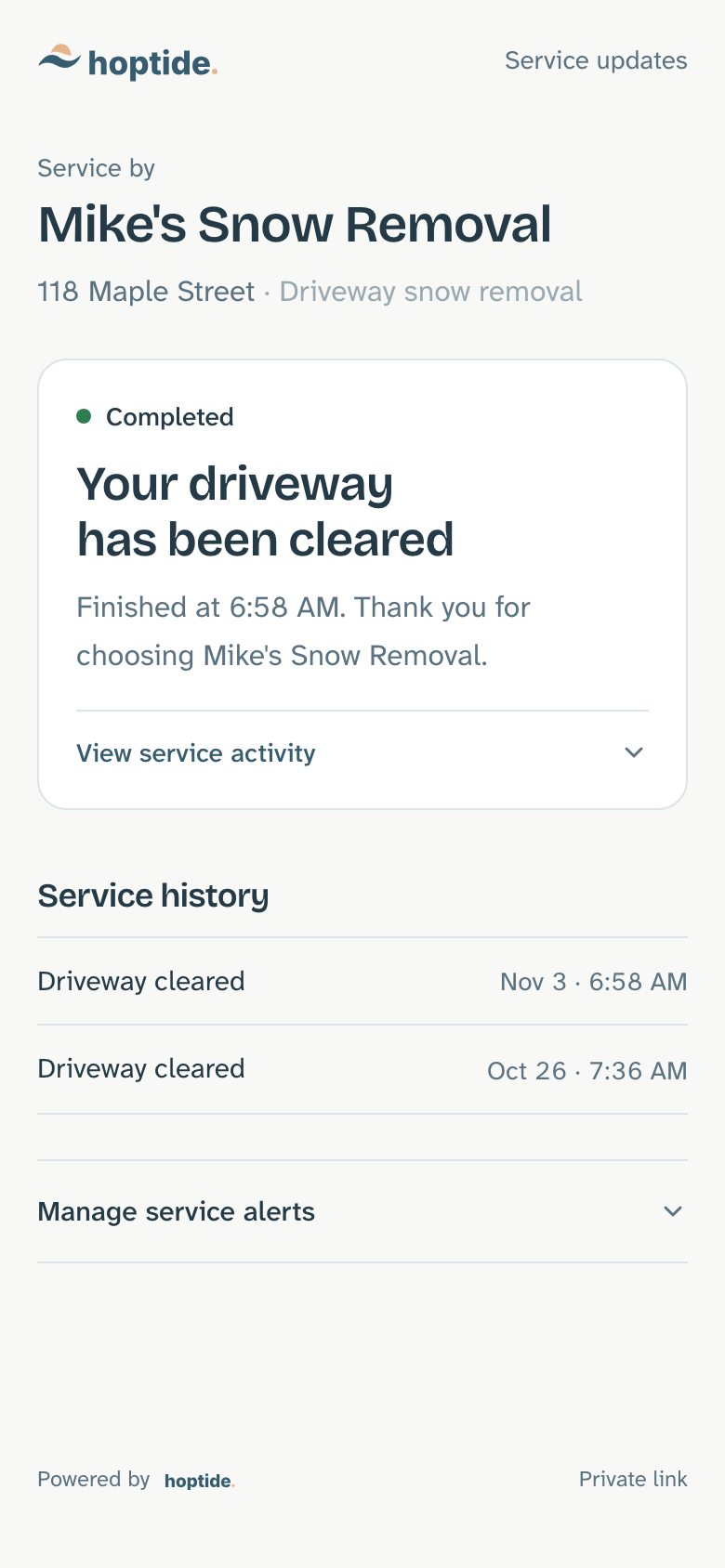
6. Every visit after
They can look back at any time.
The page keeps a record of every visit, with the date and time. "When were you last here?" is answered without a call, and the record is there for insurance questions too.
- On their page
- Driveway cleared · Oct 26 · 8:02 AM
9:41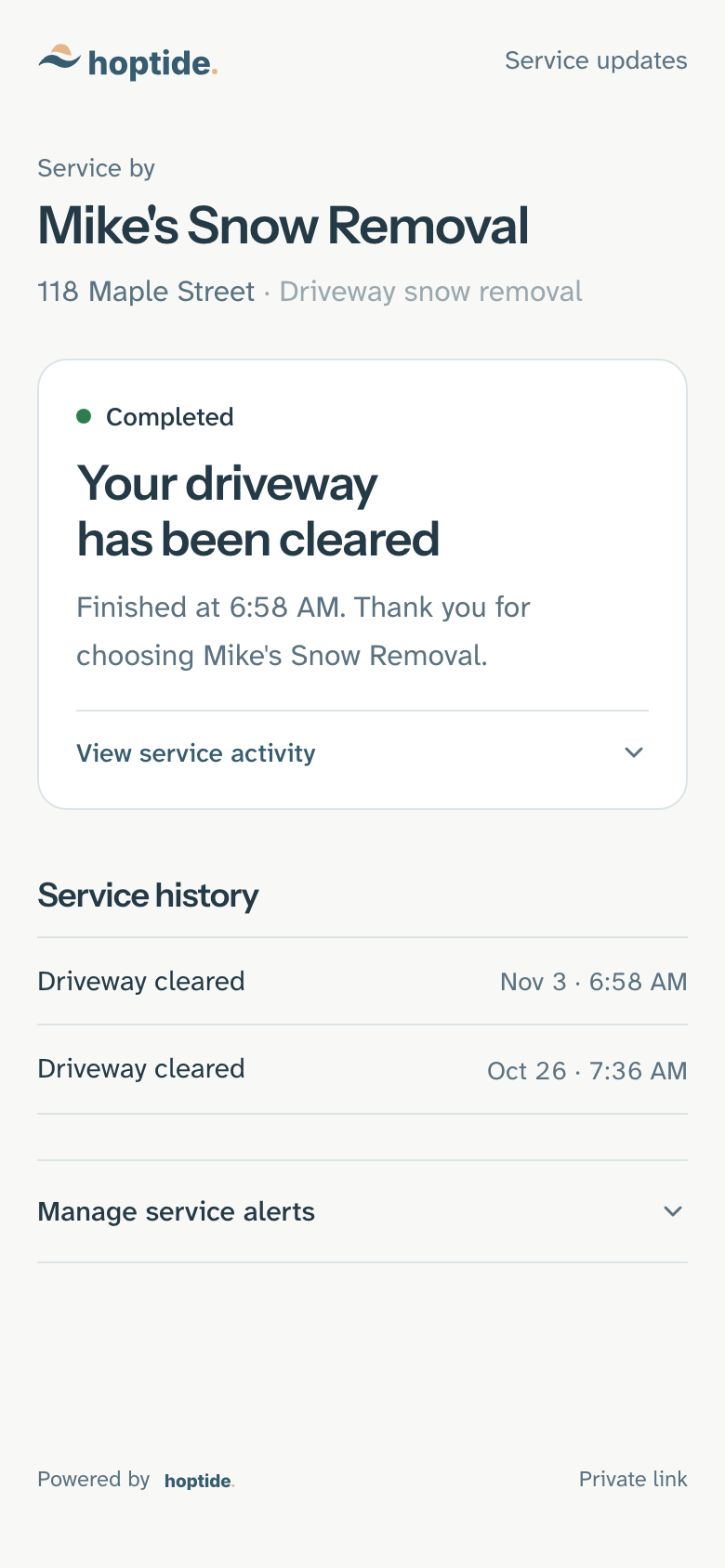

Five taps on the crew's phone. Nothing typed.
Updates come from the work itself. The crew uses the Drive screen to run the route; the customer pages and emails follow.
Start route
Every customer on the route sees the stop count. The "out today" email goes to each of them.
Mark complete
That customer gets the done email with the time. The next customer on the route hears they are next.
Report delay
Every customer still waiting sees the delay on their page, and the ones who asked for change emails get one.
Skip stop
That customer sees the stop was skipped and the reason you chose. You can come back to it later in the day.
On my way
For appointments: the customer sees and hears that the crew is heading to them.
Email, and text for those who opt in
Every update goes by email today. Customers who opt in can also get them by text once texting is turned on for your business. The page itself needs neither: it is always current.
Customers choose what they hear
By default they get the done, delay and you're-next emails. At the bottom of their page they can switch any of them off, or ask for everything.
With Hoptide Answers, they can ask
On the Answers plan the page also answers questions from that customer's own records and the answers you approve. Anything it can't answer comes to you.
- Free with one customer
- $40 a month for the whole business
- $70 a month with Hoptide Answers
- Yearly is 10% off: $432 or $756 a year
- No charge per customer or crew member
Questions?
Whether you are just looking or already running routes and appointments, these are the questions owners ask us most.
No. Each customer gets a private link to their own page. It opens in any browser on any phone, with nothing to install and no password.
An email when the job is done, when their service is delayed, and when the crew is heading to them next. Customers can change which emails they get at the bottom of their page.
Yes, once you set up texting and the phone carriers verify your toll-free number, which takes several days. Customers who turn on texts on their own page get updates by text; everyone else gets them by email.
No. They see where they are in the route, such as four stops away, and when the crew is heading to them. Hoptide does not track your location.
Paste a list or upload a CSV. Hoptide picks out names, addresses, phones and emails, creates a page for each customer, and emails the links in one go.
Free with one customer. $40 a month for the whole business, or $70 a month with Hoptide Answers. Paying yearly takes 10% off. No charge per customer or crew member.
Still have questions?
Send us a message and a person replies.
Spend more time on the work. Less time answering questions about it.
Try Hoptide with one customer and watch their page change as you work.